1. חברו את הטלפון הראשון שלכם
מטרה: ראו מכשיר אחד במחשב שלכם ושלטו בו. חיבור מכשירים ושליטה במסכנים הם תכונות חינם.
עדיין לא התקנתם? התחילו עם התקנה והכנה. כבר שולטים בטלפון שלכם? המשיכו להכנת חשבון.
בחרו בחיבור שלכם
עקבו רק אחרי הסעיף עבור המכשיר שלכם. התחילו עם טלפון אחד.
טלפון פיזי: התחילו עם USB
- בטלפון, מצאו מספר בנייה תחת הגדרות → אודות הטלפון והקישו עליו שוב ושוב עד שמצב מפתח מופעל. המיקום משתנה בהתאם ליצרן; חיפשו בהגדרות הטלפון אחר אפשרויות מפתח.
- הפעילו ניפוי באגים ב-USB בהגדרות מפתח. מכשירי Xiaomi עשויים גם להדרוש התקנה דרך USB ו-ניפוי באגים ב-USB (הגדרות אבטחה).
- בטלו את נעילת הטלפון וחברו אותו למחשב בעזרת כבל USB התומך בהעברת נתונים.
- כאשר הטלפון מבקש להרשות ניפוי באגים ב-USB, אמתו שזה המחשב שלכם והקישו אפשר.
- פתחו מכשירים ביישום שולחני וחכו לכרטיס טלפון. בחיבור ראשון, האפליקציה מתקינה אוטומטית את סוכן (Agent) שלה, העוזר שנשלט בטלפון. הגיבו להודעות התקנה בטלפון אם יש צורך.
בדקו: מופיע כרטיס טלפון ומסך. לאחר אתחול סוכן, הכרטיס מציג מוכן (Ready).
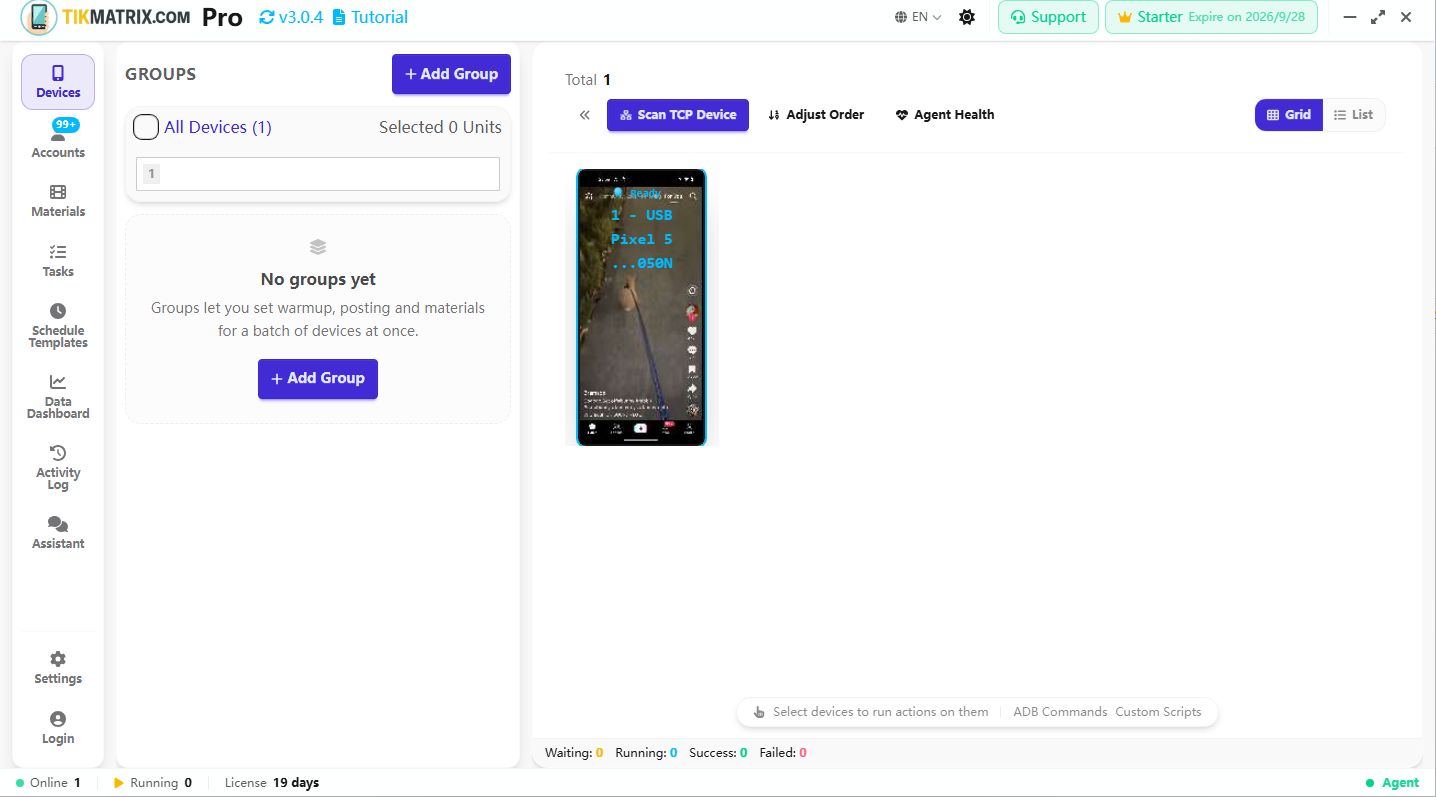
טלפון בענן: השתמשו בפרטי החיבור הקיימים שלכם
- הפעילו טלפון אחד במנהל טלפון הענן שלכם. קבלו את כתובת ADB, היציאה וכל קוד חיבור הנדרש על ידי ספק.
- ב-TikMatrix / IgMatrix, פתחו סריקת התקן TCP → רשימת טלפוני ענן.
- קישו על הוספה, הזינו את השם, כתובת ה-IP, היציאה וקוד החיבור, ואז שמרו. השתמשו בפרטים הנוכחיים מספק שלכם.
- קישו על כפתור החיבור ליד הטלפון הזה וחכו לכרטיס שלו.
בדקו: מסך טלפון הענן מופיע ומציג מוכן לאחר אתחול. האימות משתנה לפי ספק; עיינו בהפניית חיבור ענן כשאתם צריכים פרטים נוספים.
בדקו שתוכלו לשלוט בו
- קישו על מספר מכשיר אחד בלוח שמאל.
- בדקו שספירת הנבחרים היא 1. בחירת מכשיר חושפת את סרגל הכלים כללי / פקודות ADB / סקריפטים בתחתית.
- לחצו פעמיים על כרטיס הטלפון כדי לפתוח את המסך שלו בגודל גדול יותר. פתחו אפליקציה רגילה כגון הגדרות הטלפון מהמסך הזה.
בדקו: לחיצה במחשב משנה את מסך הטלפון. סיימתם את שלב החיבור.
תקועים כאן?
| מה שאתם רואים | נסו זאת קודם |
|---|---|
| הטלפון טוען אך לא מופיע כרטיס | נסו כבל בעל יכולת נתונים ופורט USB ישיר במחשב; בטלו את נעילת הטלפון ובדקו את הודעת ניפוי הבאגים. |
| ממתין להרשאה | הרשו ניפוי באגים ב-USB למחשב שלכם בטלפון, ואז התחברו מחדש. |
| כרטיס מופיע אך לא הופך למוכן | בדקו לקבלת הודעת התקנה, ואחרי זאת עקבו אחרי פתרון בעיות אתחול סוכן. |
| מסך מופיע אך הלחיצות לא עובדות | בטלו את נעילת הטלפון; ב-Xiaomi, בדקו ניפוי באגים ב-USB (הגדרות אבטחה). |
| חיבור ענן נכשל | בדקו שהטלפון פועל, פרטי החיבור עדכניים, והכתובת נגישה מהמחשב שלכם. |
לאחר החיבור, אתם יכולים להמשיך. חיבורים אלחוטיים, מכשירי קופסה ומפתחות ADB מטופלים בנפרד בהפניית חיבור.
הבא: הכינו חשבון אחד →