ソフトウェア启动错误
常见ソフトウェア启动错误故障排除步骤
步骤1:检查系统必要
- 确保您の系统满足最低必要:
- Windows 10 または更高版本
- 至少4GB内存
- 至少1GBできます用磁盘空间
步骤2:检查Microsoft Visual C++ Redistributable
通常情况下, vcruntime140.dll 未找到 または者アプリ程序无法正常启动(0xc000007b)错误是由于 Microsoft Visual C++ Redistributable 未安装导致の。
- 按
Windows + R键, 输入cmdし按回车 - 输入
dir "C:\Windows\System32\vcruntime*.dll"し按回车 - など果有输出,说明安装相关版本の Visual C++ Redistributable。文件名中の vcruntime 后缀通常会带版本号,など vcruntime140.dll(对应 2015-2022)。
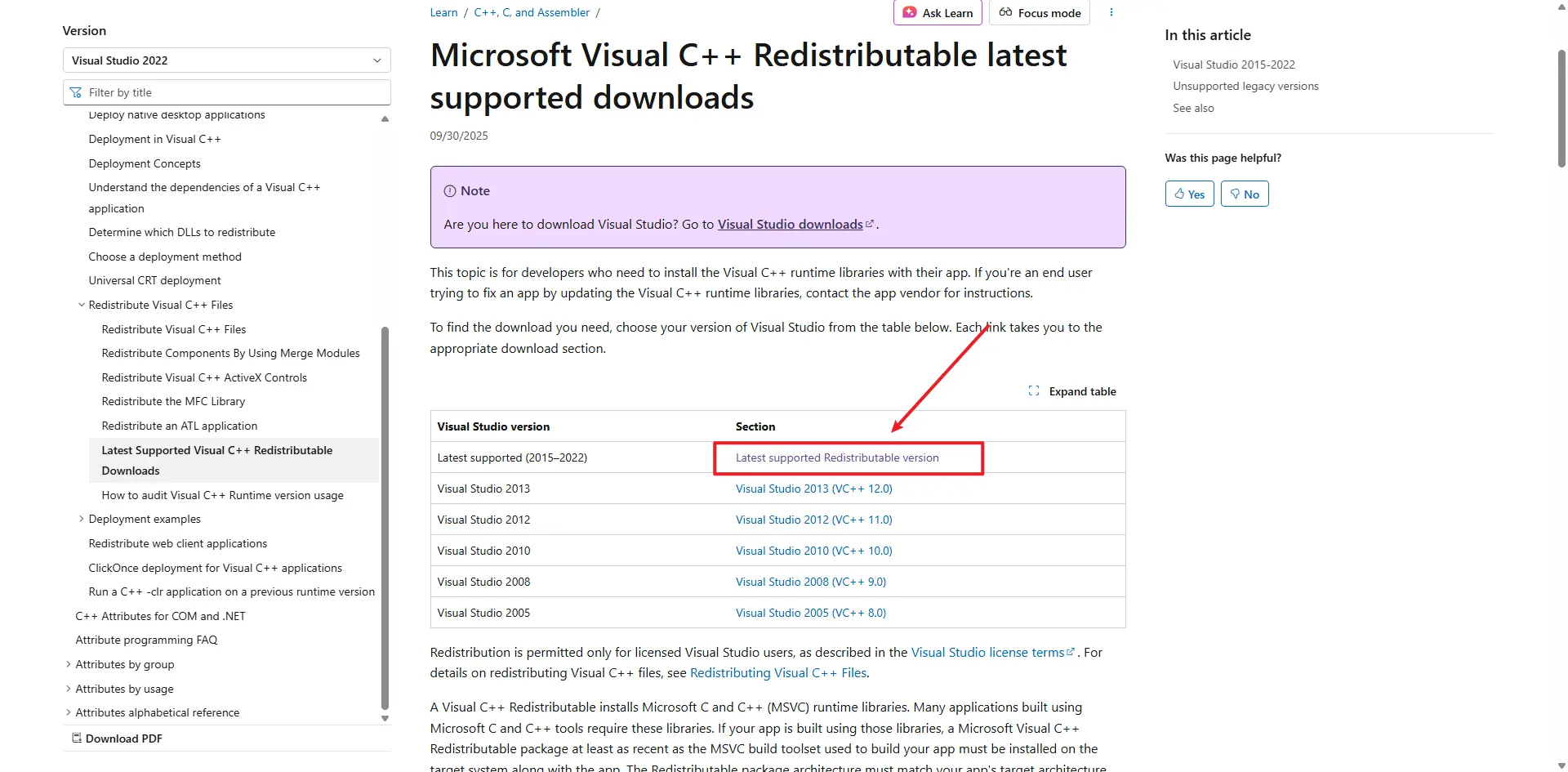
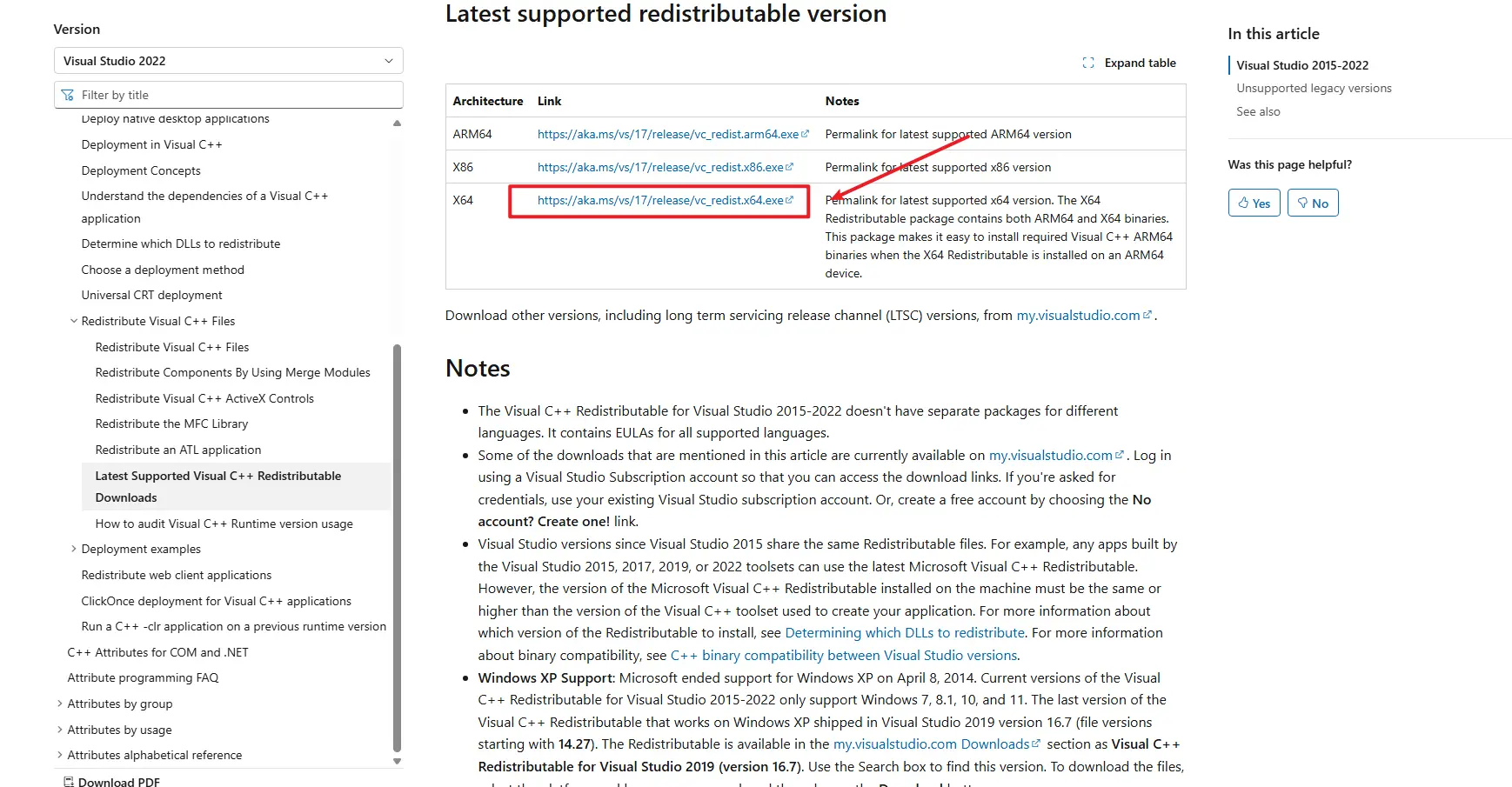
- など果没有输出,请下载し安装Microsoft Visual C++ Redistributable: Latest Microsoft Visual C++ Redistributable Version
步骤3:检查系统时间
コンピュータ时钟不准确会导致"Agent Start Timeout"错误:
- 右键点击屏幕右下角の时间显示
- 选择"调整日期/时间"
- など果尚未启用,请开启"自動設定时间"
- など果时间仍然不正确,点击"立即同步"または手動設定正确の日期和时间
- 校正时间后重新启动TikMatrix
步骤4:检查アプリ程序日志
- 点击
設定-開くアプリ目录按钮 - 导航到
logs文件夹 - 检查最新の日志文件中の错误信息
など果问题仍然存在
步骤 5:macOS — Agent InvalidStateError
在一部 macOS 机器上で,Agent できます能无法启动し出现など下错误:
Agent start error InvalidStateError: The object is in an invalid state.
できます能原因:
- 通常是アプリと当前 macOS 系统版本または旧硬件/固件之间の不兼容所致。
解决方法 / 工作方案:
- 通じて「系统設定」>「通用」>「ソフトウェア更新」将 macOS 更新到最新版。更新后重启 Mac し再次启动 TikMatrix。
- など果无法升级または错误仍然存在,尝试在另一台运行较新 macOS の Mac 上で运行アプリ。
など果在尝试以上で方法后问题依旧,请收集アプリ日志し通じて Telegram 联系我们,附上で您の macOS 版本と日志文件。
请联系我们のサポート团队 Telegram ,し提供以下信息:
- Windows版本
- アプリ程序日志文件
- 您済み经尝试过の步骤
Step 6: Linux AppImage - white screen or EGL_BAD_PARAMETER
On Linux, AppImage builds may show a white window on Wayland sessions, especially on NVIDIA systems, and the logs may contain:
Could not create default EGL display: EGL_BAD_PARAMETER
If that happens, start the AppImage once with:
WEBKIT_DISABLE_COMPOSITING_MODE=1 \
WEBKIT_DISABLE_DMABUF_RENDERER=1 \
./TikMatrix.AppImage
Recent builds enable the same WebKit workaround automatically when the app detects an AppImage running on Wayland, so the manual command should only be needed for older packages. If you prefer a native Linux package, the Linux build also includes a .deb artifact.